| Bookmark Name | Actions |
|---|
Adding a New Section
This doc explains how to add a new section to an existing module.
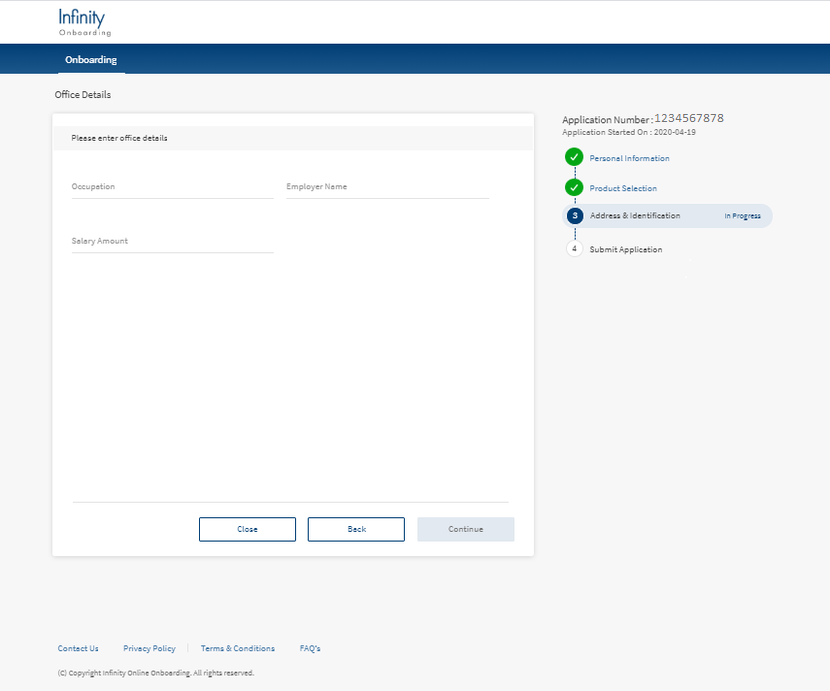
Consider that you want to add a Office Details section to the Identity Module such that you are navigated to the Office Details section after providing your Address & Identification details. The Office Details sections contain Occupation, Employer Name, and Salary Amount fields that are already available in Transact.
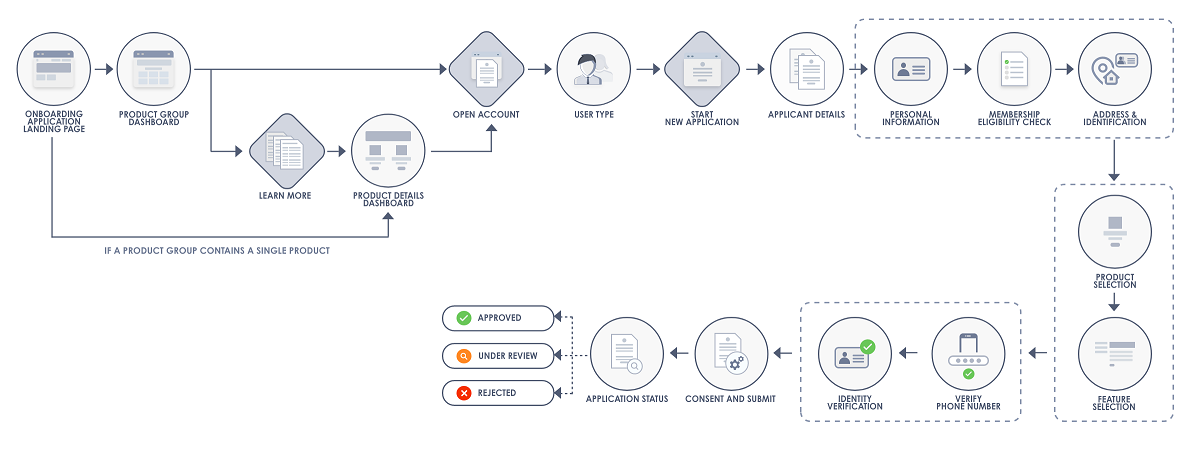
Currently, the user flow for Start a New Application is as follows.
After adding the Office Details section, the user flow is as follows.
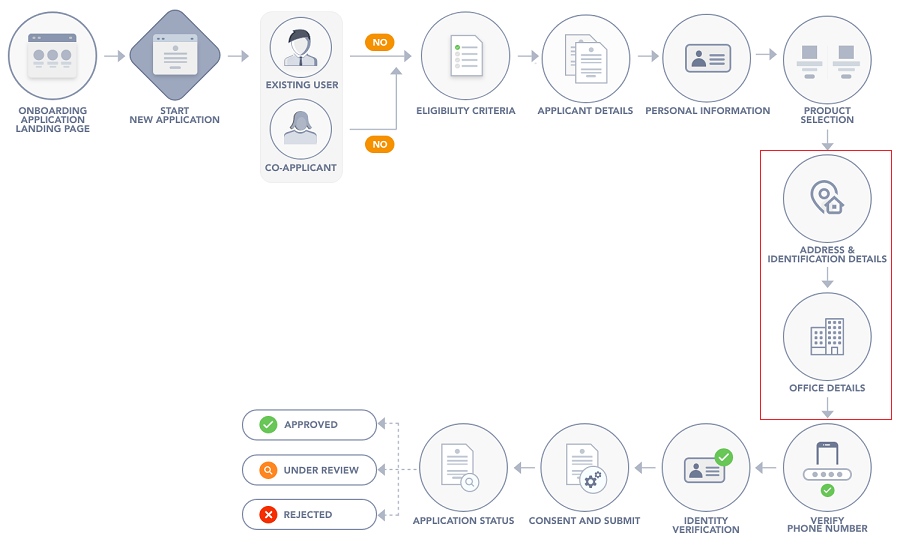
In order to achieve the scenario mentioned earlier, ensure that the navigation to the Office Details section is implemented appropriately. For more information about how to implement the navigation, refer to the Form Controller Extension and Presentation Controller Extension sections.
To add the new section, you must make the following changes:
NOTE:
- As the fields of the Office Details section are already available in Transact, you need not configure the DBX DB.
Client Application Extensions
This section provides information about the client-side changes that are required to add the Office Details section to the Identity module. Client Application Extensions involve configuring the following elements:
- UI/UX Modifications
- Form Controller
- Form Controller Extension
- Presentation Controller Extension
- Business Controller Extension
- Configuring Spotlight
UI/UX Modifications:
UI/UX modifications represent the changes that are required to enable the Office Details module. In this case, you have to create a new module and associate it with the required elements. To do so, make the following configurations in your Infinity Onboarding Visualizer project.
- In the Project Explorer, expand the Responsive Web/ Desktop section.
- Under Forms, open the IdentityModule module.
- Right-click the IdentityModule module and select New Form. A new form is created.
- Rename the new form to
frmOfficeDetails - In the Properties tab of the frmOfficeDetails form, go to Look > General, and then change the Friendly Name to frmOfficeDetails.
- Create flex containers for Header, Main Container, and Footer.
- Create flex containers in the Main Container for Content and Roadmap.
- Insert the following components to each of them.
- Header: com.dbx.CustomHeaderNUO
- Footer: com.dbx.customfooterNUO
- Roadmap : com.nuo.Roadmap
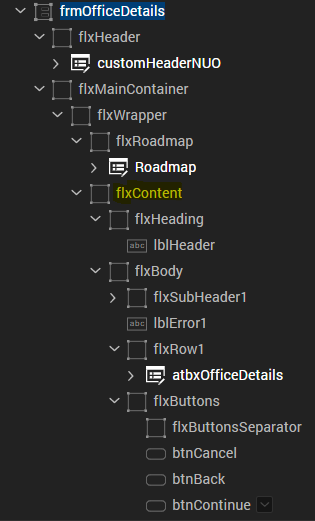
- Add the required widgets for the roadmap and the flex structure for Content is as follows.

- In the Properties tab of the frmOfficeDetails form, go to Form > General, and then select On in the Enable Idle Timeout field.
- After this, create the required i18n keys and map them to the respective labels.
To add i18n keys for the birth country field, follow these steps.
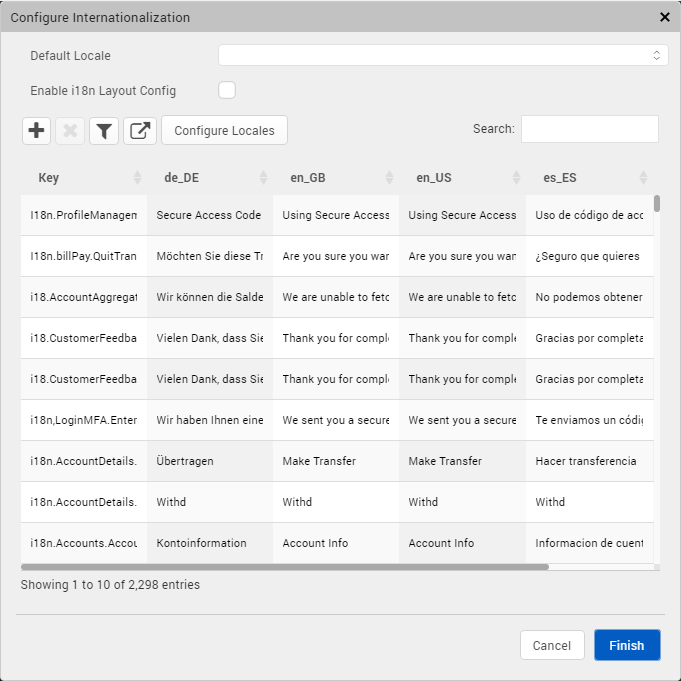
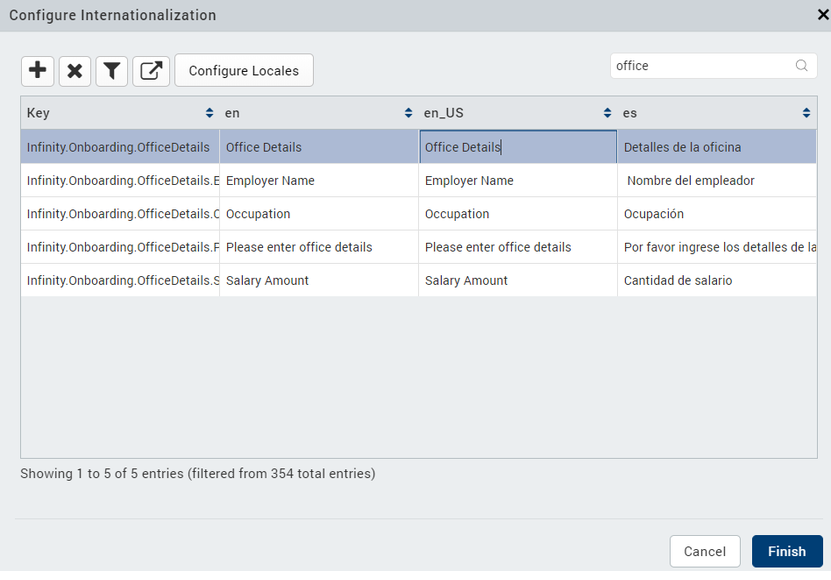
- In the main menu, go to Edit > Internationalization. The Configure Internationalization screen appears.

- To add new keys, click the plus (+) button.
- Add the following i18n keys for the corresponding elements:
- Section Header: Infinity.Onboarding.OfficeDetails
- Section SubHeader: Infinity.Onboarding.OfficeDetails.PleaseEnterOfficeDetails
- Occupation field: Infinity.Onboarding.OfficeDetails.Occupation
- Employer Name field: Infinity.Onboarding.OfficeDetails.EmployerName
- Salary Amount field: Infinity.Onboarding.OfficeDetails.SalaryAmount

- Add the following keys for the errors scenarios:
- Occupation field: Infinity.Onboarding.OfficeDetails.EnterValidOccupation
- Employer Name field: Infinity.Onboarding.OfficeDetails.EnterValidEmployerName
- Salary Amount field: Infinity.Onboarding.OfficeDetails.EnterValidSalaryAmount

- The final UI of the Office Details section is as follows.

NOTE: The layout of the screens is created by the designers of the implementation team. Based on the layout design, the developers of the implementation team configure the layout properties.
Form Controller
For the Office Details section to work, you must configure the frmOfficeDetails Form Controller, you must define the functions such as preShow, postShow, navigation, data validations, button click functionality, log out, idle timeout. You must also define function calls to Presentation Controller to update office information, success callback, and error callback.
The code for the required functions for the Form Controller is available here.
Form Controller Extension
To make a change in a form, you cannot directly modify the code in the Form Controller. You must create a Form Controller Extension and modify the code as required. Form Controller Extension is required to validate the new fields. It includes operations such as the addition of a JSON payload, fetching the back-end response, and mapping the error modules.
In the case of adding the Office Details section, when you click Continue on the frmIdentityDetails form, you must be navigated to the frmOfficeDetails form. To do so, you must create a Form Controller Extension in order to extend the functionality of the frmIdentityDetails form. To create a Form Controller Extension, follow these steps in the Infinity Onboarding Visualizer project.
- In the Project explorer, expand the Modules section.
- Right-click the require tab and select New Require module. A new JS file is created.
- Rename the JS file to
IdentityModuleExtn. - Define the following exit function to navigate to the frmOfficeDetails form.
exitIdentityModule: function() { kony.mvc.MDAApplication.getSharedInstance().getModuleManager().getModule("IdentityModule").presentationController.navigateToNextForm(this.context); } - Link the new extension file to the ModuleConfig file of the Identity module. To do so, go to Project > Reference Architecture Extensions > IdentityModule > Config > ModuleConfig.
Add the following line of code in the Forms method:"ControllerExtensions": ["IdentityModuleExtn"]
Presentation Controller Extension
After you create a new require module, you must create a presentation controller extension. Presentation Controller Extension overrides the business call made by the Presentation Controller. The existing presentation controller contains a Presentation Logic 1 that executes Command 1. By creating a presentation controller extension, you can invoke another business logic and override the Presentation Logic 1.
To do so, follow these steps.
- Open your Visualizer project.
- In the Project explorer, expand the Reference Architecture Extensions section.
- Expand the module name that you want to create an extension for.
- Right-click the Presentation Controller and select Create New Extension > Presentation Controller.
In this case, create a presentation controller extension for the IdentityModule module. - To open the
frmOfficeDetailsform, define the following function:navigateToNextForm: function(context) { var appModule = require("AppModule"); context = context || {}; appModule.launchForm("frmOfficeDetails", context, this); } - To open the frmIdentityDetails form when you click Back on the frmOfficeDetails form, define the following function:
navigateToPrevForm: function(context) { var appModule = require("AppModule"); context = context || {}; appModule.launchForm("frmIdentityDetails", context, this); } - To open the frmOfficeDetails form when you click Back on the frmEnterOTP form, define the following function:
performLaunchActions: function(context) { var self = this; if (!context.isCoApplicantFlow) { self.updateSavedApplicantAddress({}); } if (context.backFromOTP === true) { self.navigateToNextForm(context); } else { self.navigateToStartForm(context); } } - To invoke a function call in the Business Controller to send the field data to back-end, define the updateOfficeInfo function.
updateOfficeInfo: function(payload, success, error) { var scopeObj = this; function successCallBack(res) { success(res); } function errorCallBack(err) { error(err); } var IndentityModule = kony.mvc.MDAApplication.getSharedInstance().getModuleManager().getModule("IdentityManager"); IndentityModule.businessController.updateOfficeOnfo(payload, successCallBack, errorCallBack); }, - To invoke a function call in the Business Controller to receive the field data from back-end, define the getOfficeInfo function.
getOfficeInfo: function(payload, success, error) { var scopeObj = this; function successCallBack(res) { success(res); } function errorCallBack(err) { error(err); } var IndentityModule = kony.mvc.MDAApplication.getSharedInstance().getModuleManager().getModule("IdentityManager"); IndentityModule.businessController.getOfficeInfo(payload, successCallBack, errorCallBack); } - When you click Back on the frmEnterOTP form, it currently opens the frmIdentityDetails form. If you want to open the frmOfficeDetails form instead of the frmIdentityDetails form, define the following function to update the context variable:
decideBackScreenForOTPScreen: function(subModuleOutContext) {
    var scopeObj = this;
    applicationManager.getPresentationUtility().dismissLoadingScreen();
    if (subModuleOutContext.isNewApplication && subModuleOutContext.isBack) {
        subModuleOutContext.backFromOTP = true;
        scopeObj.exit(subModuleOutContext);
    } else if (!subModuleOutContext.isNewApplication && subModuleOutContext.isBack) {
        appModule.launchForm("frmEnterPhoneNumber", subModuleOutContext, this);
    }
};
Business Controller Extension
Business Controller Extension is required to create a new business implementation and override the existing ones.
To create a Business Controller Extension, follow these steps.
- Go to the location in your local system where the BusinessController.js file of the IdentityManager module is available.
- Create a .js file at the same location.
- Rename the js file to BusinessControllerExtn. This file reflects in your Infinity Onboarding Visualizer Project.
- In the Project explorer, go to Reference Architecture Extensions > Extensions > IdentityManager > Config > ModuleConfig.
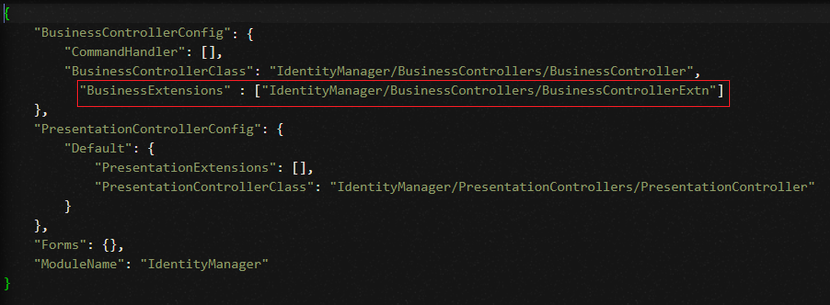
- Add the BusinessExtensions key under the BusinessControllerConfig function.
- To send the field data to back-end, define the updateOfficeInfo function.
updateOfficeInfo: function(params, presentationSuccess, presentationError) { var scope = this; var applicantModel = kony.mvc.MDAApplication.getSharedInstance().modelStore.getModelDefinition("OfficeInfo"); function completionCallBack(status, data, error) { var srh = applicationManager.getServiceResponseHandler(); var obj = srh.manageResponse(status, data, error); if (obj["status"] === true) { presentationSuccess(obj); } else { presentationError(obj); } } applicantModel.customVerb("updateOfficeInfo", params, completionCallBack); } - To receive the field data from back-end, define the getOfficeInfo function .
getOfficeInfo: function(params, presentationSuccess, presentationError) {
    var scope = this;
    var applicantModel = kony.mvc.MDAApplication.getSharedInstance().modelStore.getModelDefinition("OfficeInfo");

    function completionCallBack(status, data, error) {
        var srh = applicationManager.getServiceResponseHandler();
        var obj = srh.manageResponse(status, data, error);
        if (obj["status"] === true) {
            presentationSuccess(obj);
        } else {
            presentationError(obj);
        }
    }
    applicantModel.customVerb("getOfficeInfo", params, completionCallBack);
}
Configuring Spotlight
After you add a new section, you can define certain rules that are specific to the Office Details section in the Spotlight app. To do so, add the following fields to the Infinity Onboarding Bundle:
- Occupation
- EmployerName
- SalaryAmount
The Spotlight configurations that are required to add the Office Details section are similar to the Spotlight configurations described in the Adding a New Field to an Existing Section document. For more information about how to configure the Spotlight app, refer to Data Validation for Adding a New Field.
The JSON for the DATA_VALIDATION_NUO key for the Office Details section is as follows:
{
  "PersonalInfo": {
    "FirstName": "FIRSTNAME",
    "LastName": "LASTNAME",
    "Age": "MINOR_AGE",
    "Email": "EMAIL",
    "MobileNumber": "MOBILE_NUMBER",
    "BirthCountry": "NAME",
    "CIF": "ID_ALPHANUMERIC",
    "DateOfBirth": "DATE",
    "IsExistentMember": "BOOLEAN"
  },
  "IdentityInfo": {
    "IdNum": "ID_ALPHANUMERIC"
  },
  "AddressInfo": {
    "Country": "NAME",
    "State": "NAME",
    "Zipcode": "ZIPCODE"
  },
  "OfficeInfo": {
  "Occupation": "NAME",
  "EmployerName": "NAME",
  "SalaryAmount": "NUMBER"
  }
}
NOTE: The NAME and NUMBER rules are used as examples for validating the Occupation, EmployerName, and SalaryAmount fields. In the Spotlight app, each field can be associated with either a rule from the common rule set or a custom rule.
Server-side Extensions
This section provides information about the server-side changes that are required to add the Office Details section to the Identity module.
After you create and configure new fields on the client-side, you must configure the server-side implementations to bind the UI elements with the back-end data. This involves configuring the following elements:
Java Integration Service
This section explains how to add a new module in DTO. This facilitates storing the new data in the back end.
IMPORTANT: Before configuring Java Integration Service, ensure to set up an IDE and configure the server-side code.
To modify the required java service, follow these steps.
- Open your Eclipse project.
- Create a new java project similar to the base project that contains the resources such as business delegate and java service packages. Ensure to add the base project as a dependency.

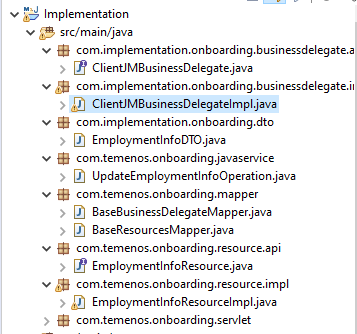
- Add a new DTO that contains the fields of the Office Details form to the OfficeInfoDTO.java class.
package com.implementation.onboarding.dto; import com.dbp.core.api.DBPDTO; import com.fasterxml.jackson.annotation.JsonIgnoreProperties; import com.fasterxml.jackson.annotation.JsonInclude; import com.fasterxml.jackson.annotation.JsonInclude.Include; @JsonIgnoreProperties(ignoreUnknown = true) @JsonInclude(value = Include.NON_NULL) public class OfficeInfoDTO implements DBPDTO { private static final long serialVersionUID = 5035451677588972439L; private String officeAdress; public String getofficeAddress() { return officeAdress; } public void setOfficeAddress(String officeAdress) { this.officeAdress = officeAdress; } } - Add a new Business Delegate API Interface to the ClientJMBusinessDelegate.java class and define the methods required to implement the data functionalities such as get/update data to the Journey Manager.
package com.implementation.onboarding.businessdelegate.api; import org.json.JSONObject; import com.dbp.core.api.BusinessDelegate; import com.implementation.onboarding.dto.OfficeInfoDTO; import com.temenos.onboarding.dto.JMSessionDTO; import com.temenos.onboarding.dto.PersonalInfoDTO; import com.temenos.onboarding.errorhandling.OnBoardingException; public interface ClientJMBusinessDelegate extends BusinessDelegate { JSONObject updateOfficeInfo(OfficeInfoDTO officeInfoDTO, JMSessionDTO jmsObject, String applicantType) throws OnBoardingException; OfficeInfoDTO getOfficeInfo(JMSessionDTO jmsObject, String applicantType) throws OnBoardingException; } - Implement the methods from the Business Delegate API Interface in the ClientJMBusinessDelegateImpl.java class. You can use the available business delegate methods from the base Onboarding project to communicate with the backend/storage points.
package com.implementation.onboarding.businessdelegate.impl; import java.util.HashMap; import java.util.Iterator; import org.apache.logging.log4j.LogManager; import org.apache.logging.log4j.Logger; import org.json.JSONArray; import org.json.JSONObject; import com.dbp.core.api.DBPDTO; import com.implementation.onboarding.businessdelegate.api.ClientJMBusinessDelegate; import com.implementation.onboarding.dto.OfficeInfoDTO; import com.temenos.onboarding.dto.JMSessionDTO; import com.temenos.onboarding.dto.PersonalInfoDTO; import com.temenos.onboarding.errorhandling.ErrorCodeEnum; import com.temenos.onboarding.errorhandling.OnBoardingException; import com.temenos.onboarding.utils.Constants; import com.temenos.onboarding.businessdelegate.impl.JMBusinessDelegateImpl; public class ClientJMBusinessDelegateImpl implements ClientJMBusinessDelegate{ private static final Logger logger = LogManager.getLogger(ClientJMBusinessDelegateImpl.class); @Override public JSONObject updateOfficeInfo(OfficeInfoDTO officeInfoDTO, JMSessionDTO jmsObject, String applicantType) throws OnBoardingException{ try { JSONObject fullResponse = JMBusinessDelegateImpl.getJMApplication(jmsObject); JSONObject fullJson = fullResponse.getJSONArray("AvokaSmartForm").getJSONObject(0); JSONObject applicantJson = fullResponse.getJSONArray("AvokaSmartForm").getJSONObject(0) .getJSONArray("Application").getJSONObject(0).getJSONArray(applicantType).getJSONObject(0); JMBusinessDelegateImpl JM = new JMBusinessDelegateImpl(); JM.updateSectionData(applicantJson, officeInfoDTO); applicantJson = JM.updateProgressStatus(applicantJson, "OfficeInfo"); JM.updateInMainJson(fullJson, applicantType, applicantJson); String updatePayload = JM.prepareUpdatePayload(fullJson).toString(); JSONObject response = JM.updateJMApplication(jmsObject, updatePayload); return response; } catch (OnBoardingException onBoardingException) { throw onBoardingException; } catch (Exception exception) { String errorMsg = "Error in JMBusinessDelegate : updateOfficeInfo : " + exception.toString(); logger.error(errorMsg); OnBoardingException onBoardingException = new OnBoardingException(ErrorCodeEnum.ERR_75104); throw onBoardingException; } } @Override public OfficeInfoDTO getOfficeInfo(JMSessionDTO jmsObject, String applicantType) throws OnBoardingException { try { JMBusinessDelegateImpl JM = new JMBusinessDelegateImpl(); JSONObject fullResponse = JM.getJMApplication(jmsObject); OfficeInfoDTO dtoObject = new OfficeInfoDTO(); JSONArray array = fullResponse.getJSONArray("AvokaSmartForm"); JSONObject applicationData = array.getJSONObject(0); JSONArray applicationArray = applicationData.getJSONArray("Application"); JSONObject applicantsType = applicationArray.getJSONObject(0); JSONArray applicantArray = applicantsType.getJSONArray(applicantType); JSONObject personalInfo = applicantArray.getJSONObject(0); JSONArray officeInfoArray = personalInfo.getJSONArray("OfficeInfo"); JSONObject officeInfoObject = officeInfoArray.getJSONObject(0); if(officeInfoObject.has("OfficeAddress")) { dtoObject.setOfficeAddress(officeInfoObject.getString("OfficeAddress")); } return dtoObject; }catch (OnBoardingException onBoardingException) { throw onBoardingException; } catch (Exception exception) { String errorMsg = "Error in JMBusinessDelegate : getOfficeInfo : " + exception.toString(); logger.error(errorMsg); OnBoardingException onBoardingException = new OnBoardingException(ErrorCodeEnum.ERR_75103); throw onBoardingException; } } } - Add a new Resource API Interface to the OfficeInfoResource.java class and define the following methods:
package com.temenos.onboarding.resource.api; import com.dbp.core.api.Resource; import com.konylabs.middleware.controller.DataControllerRequest; import com.konylabs.middleware.controller.DataControllerResponse; import com.konylabs.middleware.dataobject.Result; public interface OfficeInfoResource extends Resource { Result UpdateOfficeInfo(String methodID, Object[] inputArray, DataControllerRequest request, DataControllerResponse response); Result getOfficeInfoData(String methodID, Object[] inputArray, DataControllerRequest dcRequest, DataControllerResponse dcResponse); } - Implement the methods defined in the Resource API Interface of the OfficeInfoResource.java class to communicate with the Java operation and Business Delegate.
package com.temenos.onboarding.resource.impl; import org.apache.logging.log4j.LogManager; import org.apache.logging.log4j.Logger; import org.json.JSONObject; import com.dbp.core.api.factory.BusinessDelegateFactory; import com.dbp.core.api.factory.impl.DBPAPIAbstractFactoryImpl; import com.implementation.onboarding.businessdelegate.api.ClientJMBusinessDelegate; import com.implementation.onboarding.dto.OfficeInfoDTO; import com.konylabs.middleware.controller.DataControllerRequest; import com.konylabs.middleware.controller.DataControllerResponse; import com.konylabs.middleware.dataobject.Param; import com.konylabs.middleware.dataobject.Result; import com.konylabs.middleware.session.Session; import com.temenos.onboarding.businessdelegate.api.JMBusinessDelegate; import com.temenos.onboarding.dto.JMSessionDTO; import com.temenos.onboarding.dto.PersonalInfoDTO; import com.temenos.onboarding.errorhandling.ErrorCodeEnum; import com.temenos.onboarding.errorhandling.OnBoardingException; import com.temenos.onboarding.resource.api.OfficeInfoResource; import com.temenos.onboarding.utils.CommonUtils; import com.temenos.onboarding.utils.Constants; public class OfficeInfoResourceImpl implements OfficeInfoResource { private static final Logger logger = LogManager.getLogger(OfficeInfoResourceImpl.class); @Override public Result UpdateOfficeInfo(String methodID, Object[] inputArray, DataControllerRequest request, DataControllerResponse response) { Result result = new Result(); try { String applicantType = request.getParameter(Constants.APPLICANTTYPE); OfficeInfoDTO employmentInfoDTO = populateOfficeInfoDTO(request); JMSessionDTO jmsObject = new JMSessionDTO(); jmsObject.setTrackingId(request.getParameter("Application_id")); ClientJMBusinessDelegate jmBusinessDelegate = DBPAPIAbstractFactoryImpl.getInstance() .getFactoryInstance(BusinessDelegateFactory.class) .getBusinessDelegate(ClientJMBusinessDelegate.class); JSONObject jmUpdateResponse = jmBusinessDelegate.updateOfficeInfo(employmentInfoDTO, jmsObject, applicantType); result = CommonUtils.getResultObjectFromJSONObject(jmUpdateResponse); } catch (OnBoardingException onBoardingException) { result = onBoardingException.updateResultObject(result); } catch (Exception exception) { String errorMsg = "Error in EmploymentInfoResourceImpl : UpdateEmploymentInfo : " + exception.toString(); logger.error(errorMsg); result = ErrorCodeEnum.ERR_71000.updateResultObject(result); } return result; } protected OfficeInfoDTO populateOfficeInfoDTO(DataControllerRequest dcRequest) { OfficeInfoDTO officeInfoDTO = new OfficeInfoDTO(); officeInfoDTO.setOfficeAddress(dcRequest.getParameter("OfficeAddress")); return officeInfoDTO; } @Override public Result getOfficeInfoData(String methodID, Object[] inputArray, DataControllerRequest dcRequest, DataControllerResponse dcResponse) { Result result = new Result(); try { String applicantType = dcRequest.getParameter(Constants.APPLICANTTYPE); Session session = dcRequest.getSession(); JMSessionDTO jmsObject = (JMSessionDTO) session.getAttribute(Constants.JM_SESSION); ClientJMBusinessDelegate jmBusinessDelegate = DBPAPIAbstractFactoryImpl.getInstance() .getFactoryInstance(BusinessDelegateFactory.class) .getBusinessDelegate(ClientJMBusinessDelegate.class); OfficeInfoDTO officeInfoDTO = jmBusinessDelegate.getOfficeInfo(jmsObject, applicantType); // construct result object result = constructOfficeInfoResult(jmsObject.getTrackingId(), applicantType, officeInfoDTO); } catch (OnBoardingException onBoardingException) { result = onBoardingException.updateResultObject(result); } catch (Exception exception) { String errorMsg = "Error in PersonalInfoResourceImpl : getPersonalInfoData : " + exception.toString(); logger.error(errorMsg); OnBoardingException onBoardingException = new OnBoardingException(ErrorCodeEnum.ERR_73400); result = onBoardingException.updateResultObject(result); } return result; } private Result constructOfficeInfoResult(String trackingId, String applicantType, OfficeInfoDTO officeInfoDTO) { Result result = new Result(); result.addParam(new Param(Constants.APPLICATION_ID, trackingId)); result.addParam(new Param(Constants.APPLICANTTYPE, applicantType)); result.addParam(new Param("OfficeAddress", officeInfoDTO.getofficeAddress())); return result; } } - To update and get data from the Journey Manager by using the resource methods that are defined earlier, add new Java Service operations. To do so, create a new class named
UpdateOfficeInfoOperation.java.package com.temenos.onboarding.javaservice; import com.temenos.onboarding.errorhandling.ErrorCodeEnum; import com.temenos.onboarding.resource.api.OfficeInfoResource; import org.apache.logging.log4j.LogManager; import org.apache.logging.log4j.Logger; import com.dbp.core.api.factory.ResourceFactory; import com.dbp.core.api.factory.impl.DBPAPIAbstractFactoryImpl; import com.konylabs.middleware.common.JavaService2; import com.konylabs.middleware.controller.DataControllerRequest; import com.konylabs.middleware.controller.DataControllerResponse; import com.konylabs.middleware.dataobject.Result; public class UpdateOfficeInfoOperation implements JavaService2 { private static final Logger logger = LogManager.getLogger(UpdateOfficeInfoOperation.class); @Override public Object invoke(String methodID, Object[] inputArray, DataControllerRequest request, DataControllerResponse response) throws Exception { Result result=new Result(); try{ OfficeInfoResource employmentInfoResource = DBPAPIAbstractFactoryImpl.getInstance().getFactoryInstance(ResourceFactory.class).getResource(OfficeInfoResource.class); result=employmentInfoResource.UpdateOfficeInfo(methodID, inputArray, request, response); }catch(Exception exception){ String errorMsg="Error : "+exception.toString()+"..."+exception.getStackTrace()[0].toString(); logger.error(errorMsg); result=ErrorCodeEnum.ERR_71000.updateResultObject(result); } return result; } }package com.temenos.onboarding.javaservice; import com.temenos.onboarding.errorhandling.ErrorCodeEnum; import com.temenos.onboarding.errorhandling.OnBoardingException; import com.temenos.onboarding.resource.api.OfficeInfoResource; import com.temenos.onboarding.resource.api.PersonalInfoResource; import com.temenos.onboarding.resource.impl.OfficeInfoResourceImpl; import org.apache.logging.log4j.LogManager; import org.apache.logging.log4j.Logger; import com.dbp.core.api.factory.ResourceFactory; import com.dbp.core.api.factory.impl.DBPAPIAbstractFactoryImpl; import com.konylabs.middleware.common.JavaService2; import com.konylabs.middleware.controller.DataControllerRequest; import com.konylabs.middleware.controller.DataControllerResponse; import com.konylabs.middleware.dataobject.Result; public class GetOfficeInfoOperation implements JavaService2 { private static final Logger logger = LogManager.getLogger(GetOfficeInfoOperation.class); @Override public Object invoke(String methodID, Object[] inputArray, DataControllerRequest request, DataControllerResponse response) throws Exception { Result result=new Result(); try{ OfficeInfoResource officeInfoResource = DBPAPIAbstractFactoryImpl.getInstance().getFactoryInstance(ResourceFactory.class).getResource(OfficeInfoResourceImpl.class); result = officeInfoResource.getOfficeInfoData(methodID, inputArray, request, response); }catch(Exception exception){ String errorMsg="Error in GetPersonalInfoOperation : "+exception.toString(); logger.error(errorMsg); result=ErrorCodeEnum.ERR_71000.updateResultObject(result); } return result; } } - In the case of adding a new form, to update the form details in the back end, you must invoke the following code snippet:
DataValidator dataValidator=new DataValidator();
dataValidator.validateData(inputArray, request, result);
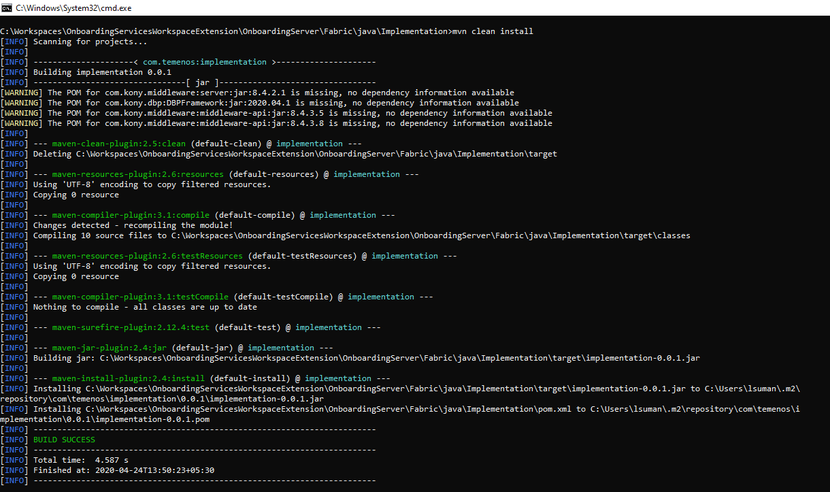
- After invoking the mentioned code snippet, build the jar by using the maven commands.

Experience API Changes in Quantum Fabric
For the Office Details module to work, you must create the back-end data in Quantum Fabric and link it to the front-end data. To do so, follow these steps.
- Sign in to your Quantum Fabric Console. The applications page opens.
- Open the InfinityOnBoarding app.
- Go to Integration > OnBoardingJavaServices.
- Add an operation for the Office Details section named, OfficeInfo and define the applicable parameters.
For more information about creating an operation for a Java Integration Service, refer to Java Adapter.
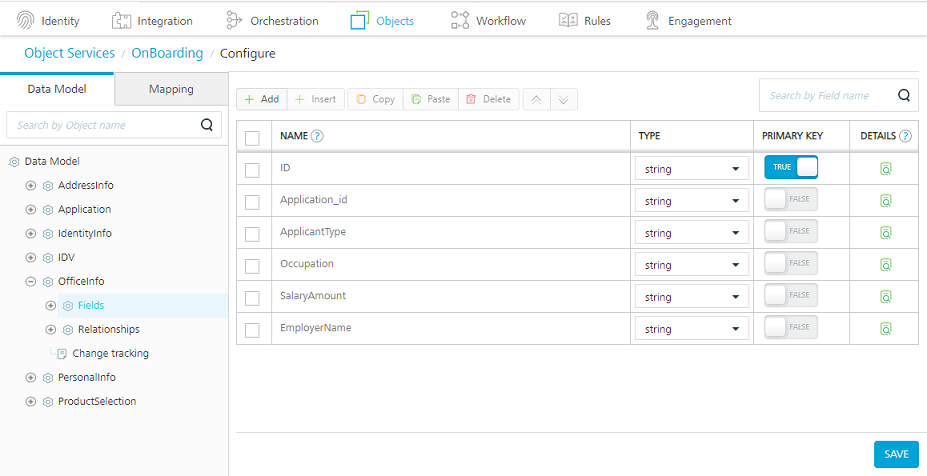
- Now, in the Objects section, go the Onboarding object service and create a new data model named, OfficeInfo.
For more information about creating a data model, refer to Configuring a Data Model.

- In the Mapping tab, map the Update and GET services to the respective java services.
For more information about mapping operations, refer to Mapping Operations to Back-end Methods.
- Save the changes and publish the application.
Journey Manager
After you implement the client application and server-side extensions, you must extend the Journey Manager functionality.
IMPORTANT: Ensure you meet the conditions mentioned in the Prerequisites section.
The Journey Manager configurations that are required to add a new section are similar to that of adding a new field. The only difference is that you must add a few more fields to create a new section. For more information about how to configure the Journey Manager, refer to Journey Manager Configurations for Adding a New Field.
Add Bookmark
save your best linksView Bookmarks
Visit your best links BACK
BACK


Are you sure you want to log-off?